Audio Setup
XeroShield can stream your in-game voice straight to the dashboard, so your admins can listen to players live. It runs on the Mumble voice server that's already built into FiveM, you just have to allow outside connections first.
Turn on external voice connections
Add this line to your server.cfg and restart the server:
set mumble_allowExternalConnections true
Without this the dashboard can't reach your voice server, so the audio feature just stays off.
Good to know
- Restart after you add it. The convar is only read when the server boots, so it won't kick in until you restart.
- Running Mumble somewhere else? If your Mumble is on a different host or port, set that address in the resource modal under voice settings, and XeroShield will use it instead of the built-in one.
VibeGames hosting
On VibeGames hosting you also have to whitelist the ip 57.129.80.236 in the panel.
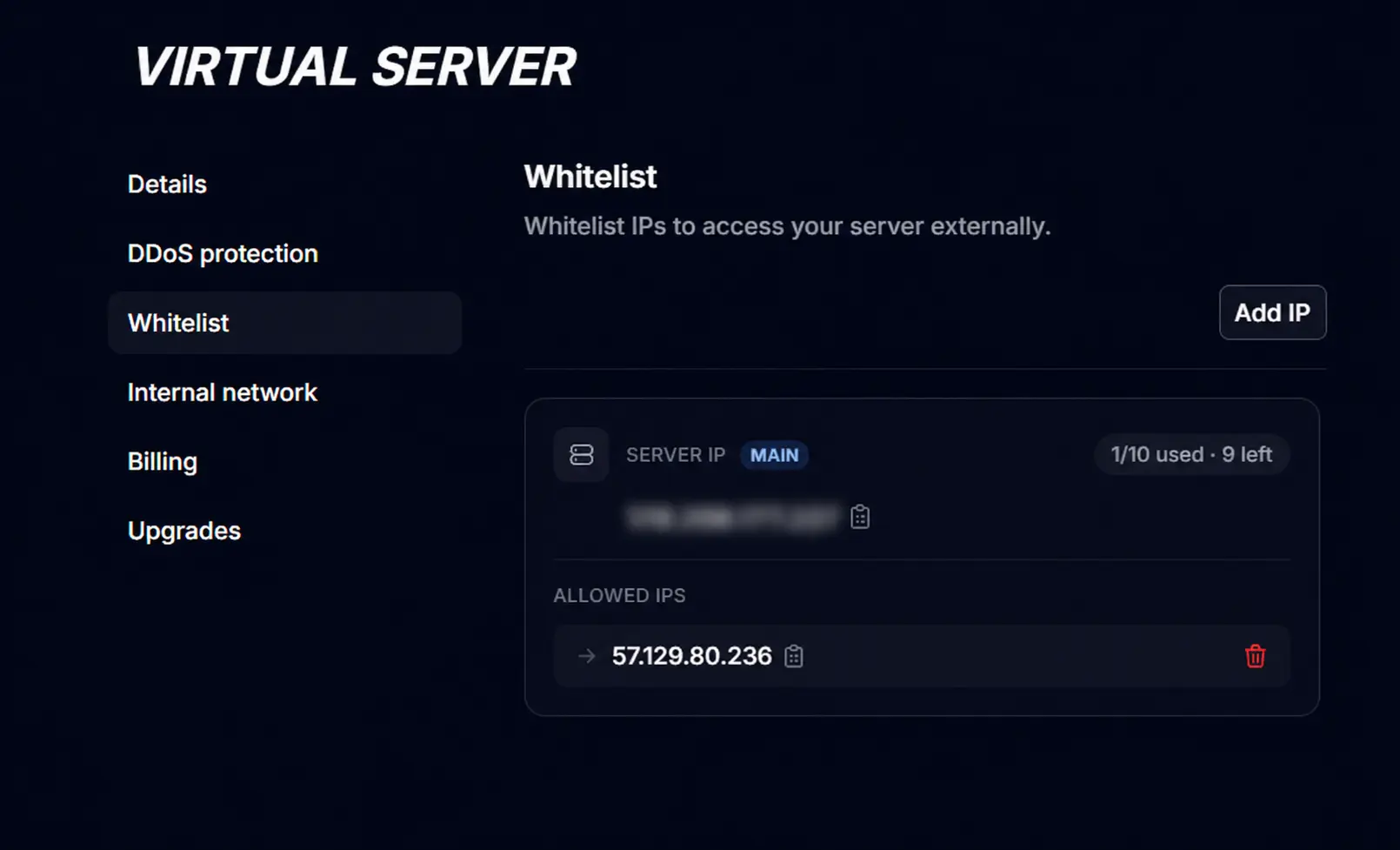
- Keep your original rule. The existing port that your DDoS protection is deployed on (for example 30120 or your original fivem port) has to stay exactly as it is. Do not change or remove it.
- Add a second port below your original. Add a new custom port (for example 30128 or any other number) for both TCP and UDP, this is the port the voice feature will use.
Example:
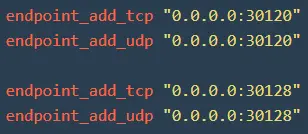
- Set it in the panel. In the Xero dashboard open Server Dashboard < Manage Resource < Voice (Mumble) and enter the address as ip:30128 or your ip:yoursecondport (the new port you added at the bottom).